> For the complete documentation index, see [llms.txt](https://mazingxr.gitbook.io/mazing-world/llms.txt). Markdown versions of documentation pages are available by appending `.md` to page URLs; this page is available as [Markdown](https://mazingxr.gitbook.io/mazing-world/product-guides/create-3d-configurator.md).
# Create 3D Configurator
The Variant Operations feature makes it easy to customize 3D models by letting you switch textures or show and hide parts of the model with simple variant selections.
## Final Result :tada:
Two variants, each with a Texture Operation.
## Getting Started
Go to the Conf tab and click on "+Add Variant".
## Variant Settings
**ID/Trigger:**
**Title:** The Title will be shown as the Variant name.
**Bubble Image / Dropdown:** Choose between different layout options
## Operations
The **Variant Operations** feature allows you to customize 3D models by adding selectable variants. Each variant can be chosen through an image-based selector or a dropdown menu. Variants can include operations that modify the model in two ways:
* **Texture Operations:** Change the material's base color, normal, occlusion, and/ or emissive textures for specific parts of the model based on the selected variant.
* **Mesh Operations:** Show or hide specific meshes within the model based on the selected variant.
### Texture Operation:
Select the wanted material and upload the texture for Base Color - , Normal Map - , Emissive - and / or Occlusion Texture. By selecting the configured variant via dropdown or bubble image (depending which one you selected), you should now see the texture applied on the model. You can add as many operations as needed.
{% hint style="info" %}
Click the eye icon next to the file input to remove the texture. Keep in mind that you may need to re-apply it when switching to the next variant.
{% endhint %}
### Mesh Operation:
#### Visibility (Show/Hide)
Select the Mesh you want to Show / Hide. By selecting the "Hide" Option, the mesh gets invisible when selecting this specific variation. When selecting the "Show" Option, the mesh gets visible. You can also combine multiple Mesh Operations.
In the following example, we created two Variations. Each with multiple Mesh Operations To Show And Hide the Arms of the chair:
When selecting the different Variation, the arms now get invisible.
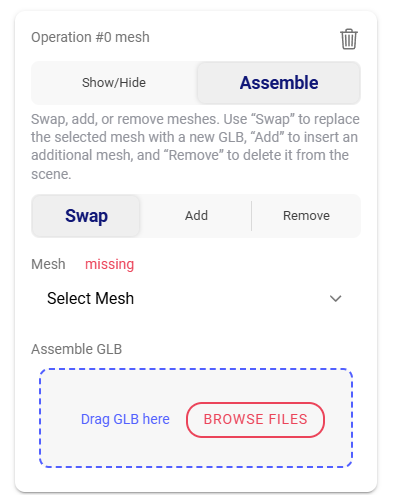
#### Assemble
Select the **Assemble** mode for more complex projects. You can choose between *swap*, *add*, or *remove* operations.
* **Swap** replaces the selected mesh with a new GLB.
* **Add** inserts a new GLB into the scene.
* **Remove** deletes the selected mesh from the mesh list.
{% hint style="info" %}
The GLB’s position and rotation must be aligned correctly. If it isn’t, you can fix it in Blender or by using our built-in Advanced Editor.
{% endhint %}
## Configurator Controls
In case you don't need the User Interface inside the Viewer Container, you can hide the User Interface by selecting the "Hide" Option:
It's recommended to hide the Configure Controls if you already have your own User Interface integrated in your shop. You can also control the variations with your own User Interface. See ->[ Variant Integration](/mazing-world/integration-types/gallery-integration.md)
When selecting "Hide In Frame", the UI is not visible in the Viewer but it's there when opening the direct mazing link to this product.
Congrats! You created your first Variation!