> For the complete documentation index, see [llms.txt](https://mazingxr.gitbook.io/mazing-world/llms.txt). Markdown versions of documentation pages are available by appending `.md` to page URLs; this page is available as [Markdown](https://mazingxr.gitbook.io/mazing-world/integration-types/badges-integration.md).
# Badges Integration
Mark your products!
The *Mazing Badges Integration* allows online shops to automatically display a **"3D available"** badge on product listing items when a 3D model exists for that SKU.\
It integrates with the Mazing API and works dynamically without modifying your backend.
### How it works
The integration script scans the product listing, extracts product SKUs, queries Mazing’s API for available 3D projects, and adds a small badge (SVG icon) to each matching product.
{% hint style="info" %}
You can fully customize the badge’s appearance, position, and behavior to match your shop’s design.
{% endhint %}
### How to integrate
Create a new integration file (if you don't have one already) and make your initBadges function.
```javascript
const waitForMazingFunction = new Promise((resolve) => {
const interval = 50;
const checkInterval = setInterval(() => {
if (typeof mazing === 'function') {
clearInterval(checkInterval);
resolve();
}
}, interval);
});
const initBadges = async () => {
await waitForMazingFunction;
// State Section
const CUSTOMER_NAME = 'YOUR_MAZING_CUSTOMER_NAME'; // Todo
const skus = 'YOUR_SKU_ARRAY_LIST'; // Todo
const { results } = await mazingRunBadges(CUSTOMER_NAME, skus);
}
initBadges();
```
{% hint style="info" %}
If you already have a mazing integration implemented, where you also call waitForMazingFunction, you don't need this function a second time.
{% endhint %}
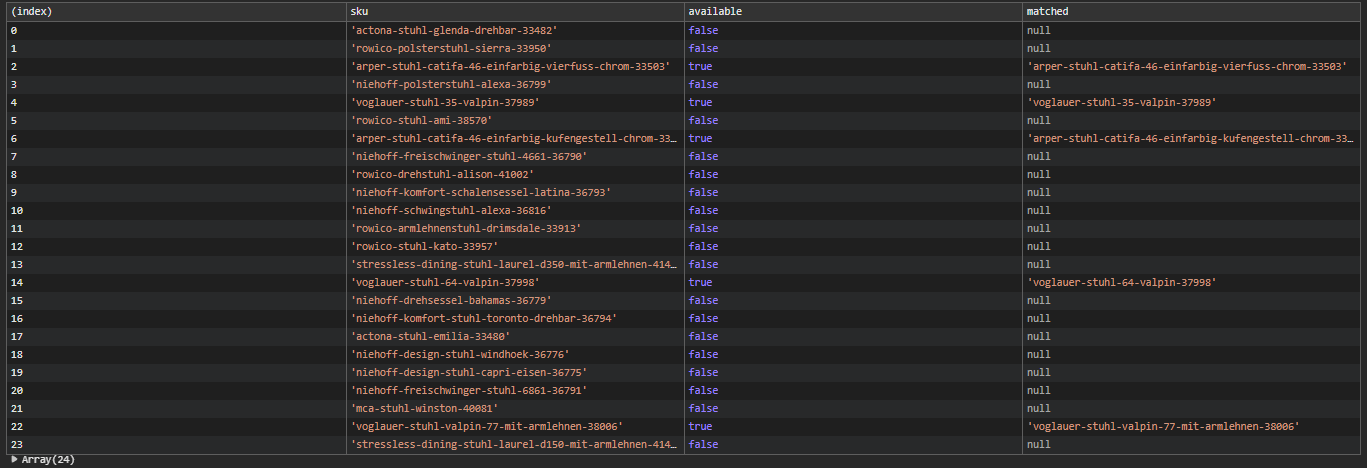
If done correctly, you'll get an array as result, with all entries that are available in the Mazing World.
That's it! You can now start with writing your own "addBadges" method. Iterate through the **results** and use your addBadges method to add the badges to your products.
Example of how this could look:
```javascript
const initBadges = async () => {
await waitForMazingFunction;
// State Section
const CUSTOMER_NAME = 'YOUR_MAZING_CUSTOMER_NAME'; // Todo
const skus = 'YOUR_SKU_ARRAY_LIST'; // Todo
const { results } = await mazingRunBadges(CUSTOMER_NAME, skus);
const bySku = new Map();
for (const result of results) {
if (!result.available) continue; // If the product is not available, skip it
const entry = bySku.get(result.sku);
if (!entry) continue;
// Call the addBadges method for each available entry
entry.elements.forEach(el => add3DBadgeToItem(el));
}
}
```
Example of the ***addBadge*** method:
```javascript
const add3DBadgeToItem = (itemEl) => {
if (!itemEl) {
return;
}
const pos = itemEl.querySelector('.position-relative') || itemEl;
const badges = document.createElement('div');
badges.style.position = 'absolute';
badges.style.right = '0';
badges.style.bottom = '0';
badges.style.zIndex = '1';
pos.prepend(badges);
if (itemEl.querySelector('[data-badge-mazing="true"]')) {
return;
}
const badge = document.createElement('div');
const badgeImg = document.createElement('img');
badgeImg.src = 'https://cdn.mazing.link/assets/svg/3D.svg';
badgeImg.style.width = '40px';
badgeImg.style.filter = 'invert(13%) sepia(97%) saturate(7488%) hue-rotate(-1deg) brightness(92%) contrast(112%)';
badge.setAttribute('data-badge-mazing', 'true');
badges.appendChild(badgeImg);
badges.appendChild(badge);
}
```