> For the complete documentation index, see [llms.txt](https://mazingxr.gitbook.io/mazing-world/llms.txt). Markdown versions of documentation pages are available by appending `.md` to page URLs; this page is available as [Markdown](https://mazingxr.gitbook.io/mazing-world/de/ai-apps/ai-image-chat.md).
# AI Image Chat
## Generate AI Images
#### Start the AI Image Chat
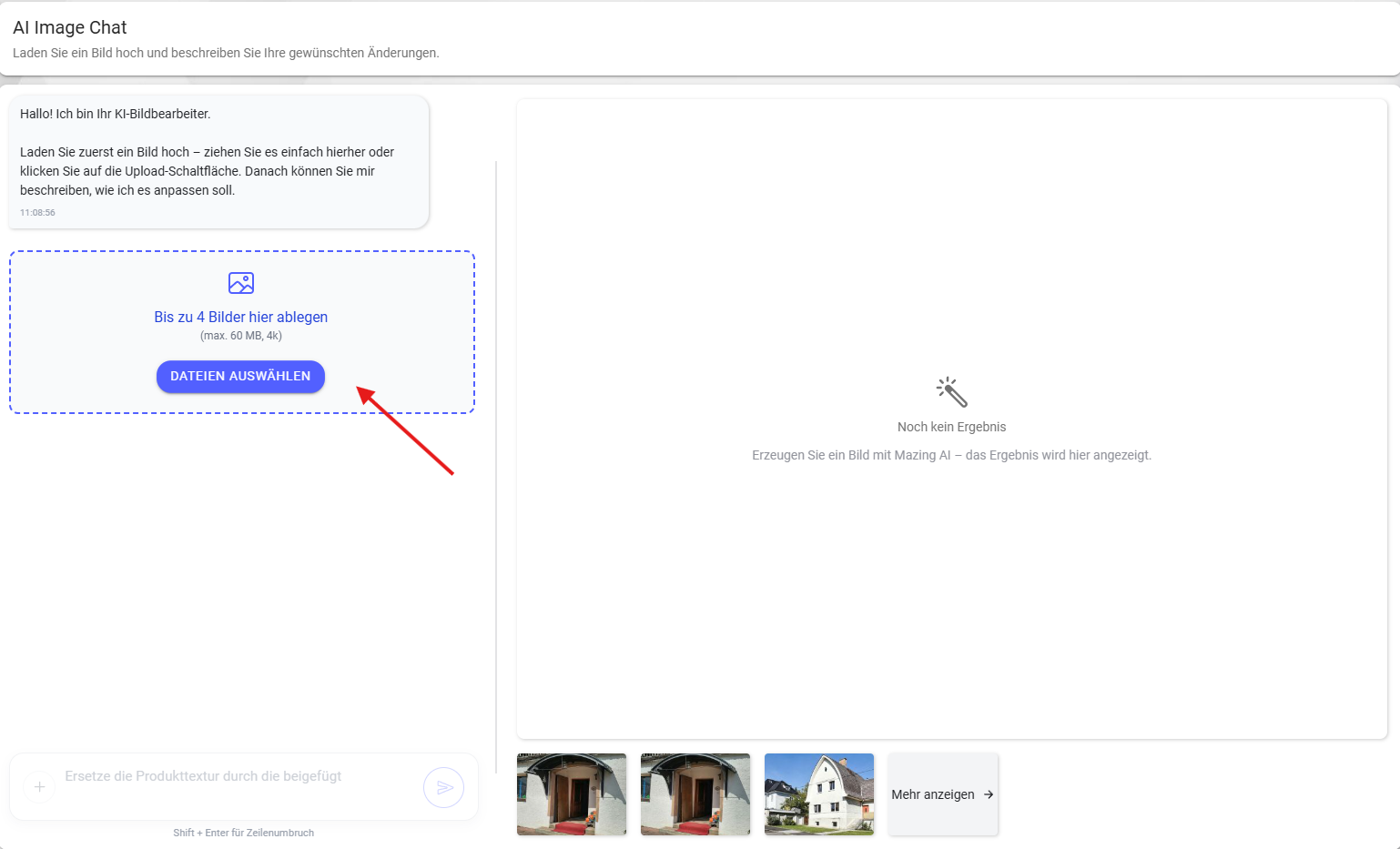
1. Open the **AI Image Chat** in **Mazing World**.
2. Select **up to 4 images**.
* Drag and drop them into the upload area, **or**
* Click **Browse File** to open the file selector.
Once uploaded, your images will appear directly inside the AI Chat.
#### Describe Your Changes
1. In the text input, **describe what you want to change or create**.
2. Send your message and wait for the AI to generate results.
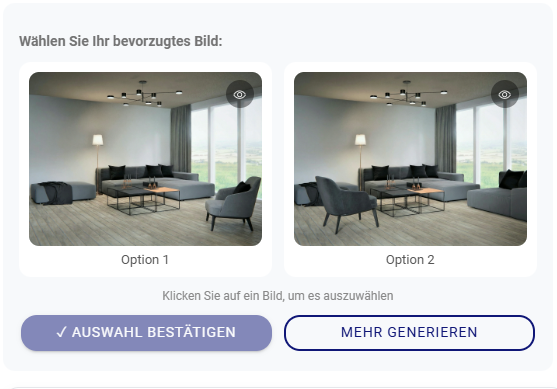
The AI will generate **two image options** for you to choose from.
* If you don’t like the results, click **Generate More** to receive **two additional options**.
* Repeat this step until you are happy with one of the results.
When you find the image you like:
1. Click on the image option in the chat.
2. Confirm your selection.
#### View and Reuse Your Result
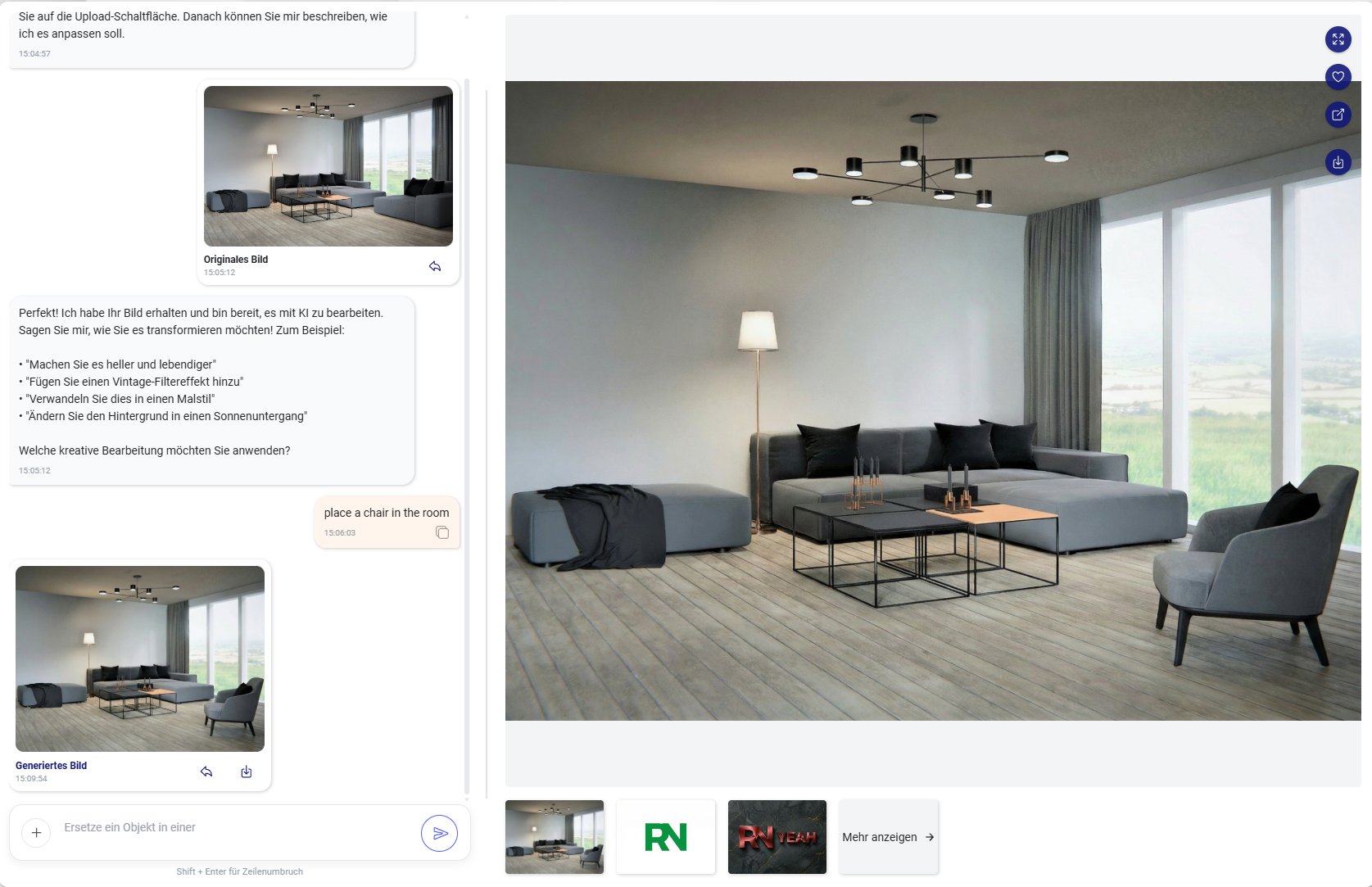
* The final image will appear in the **image result panel on the right**.
* It will also be saved in your **History**, where you can:
* Reuse the image
* Review the exact workflow and prompt used to create it
## Start a New Chat
* When you upload your first image, the AI Chat starts automatically.
* A **New Chat** button will appear in the app header.
Click **New Chat** to:
* Clear the current image result
* Reset the chat history
* Start a fresh AI Image Chat
## Prompt Enhancer
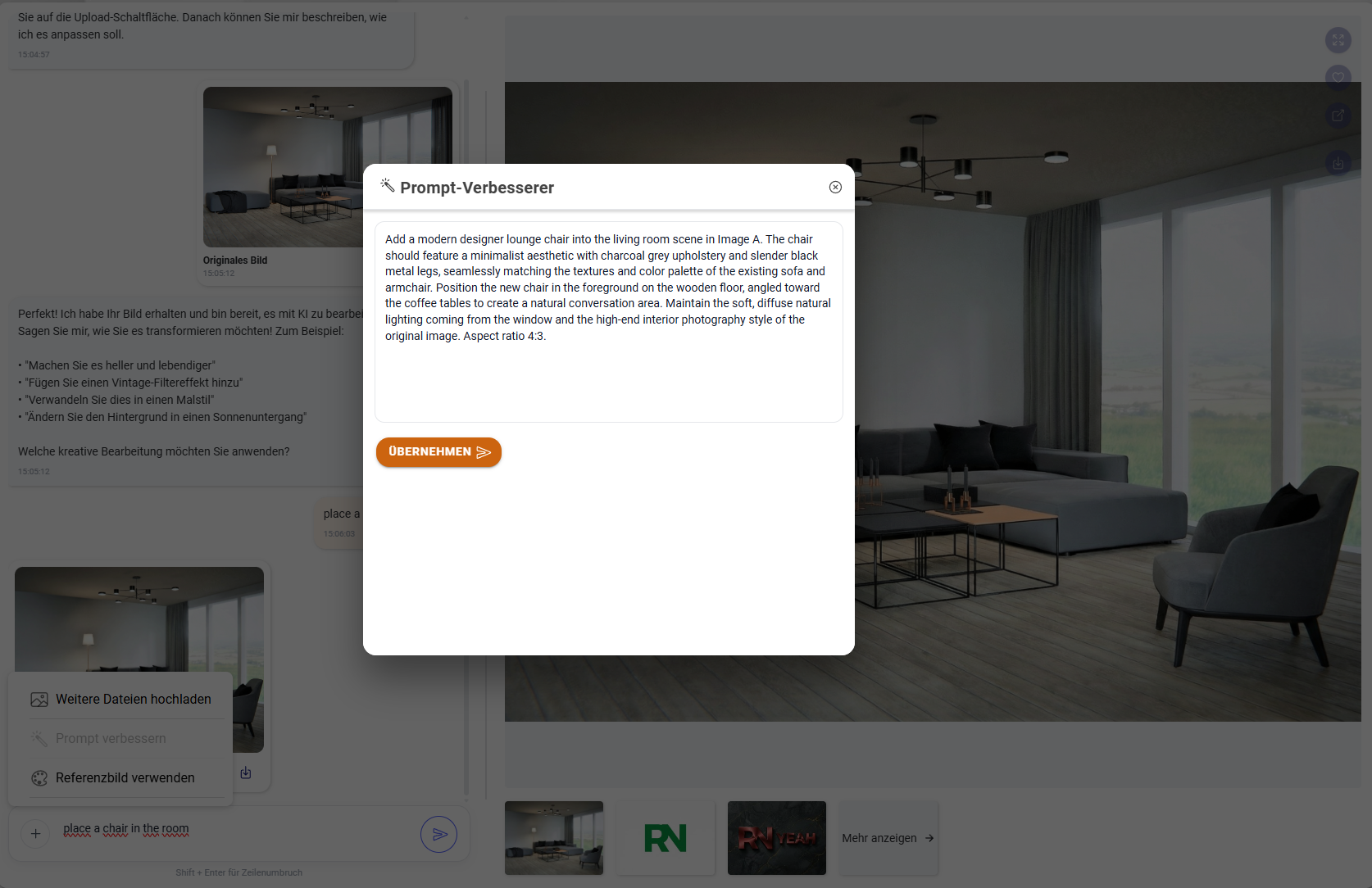
If you’re not sure whether your prompt is good enough, you can use the **built-in Prompt Enhancer**.
#### How to Use It
1. Type your prompt in the input field **(do not send it)**.
2. Click the **“+” icon** on the left side of the input.
3. Select **Prompt Enhancer** from the menu.
The AI will now improve your prompt.\
This may take a few seconds.
Once finished:
* A Prompt Enhancer window will open with the **enhanced prompt**.
* You can:
* Click **Apply** to use it directly, or
* Edit the prompt before applying it if needed