> For the complete documentation index, see [llms.txt](https://mazingxr.gitbook.io/mazing-world/llms.txt). Markdown versions of documentation pages are available by appending `.md` to page URLs; this page is available as [Markdown](https://mazingxr.gitbook.io/mazing-world/ai-apps/product-placement.md).
# Product Placement
Add objects to your room scene
## Add Objects in your Room Scene
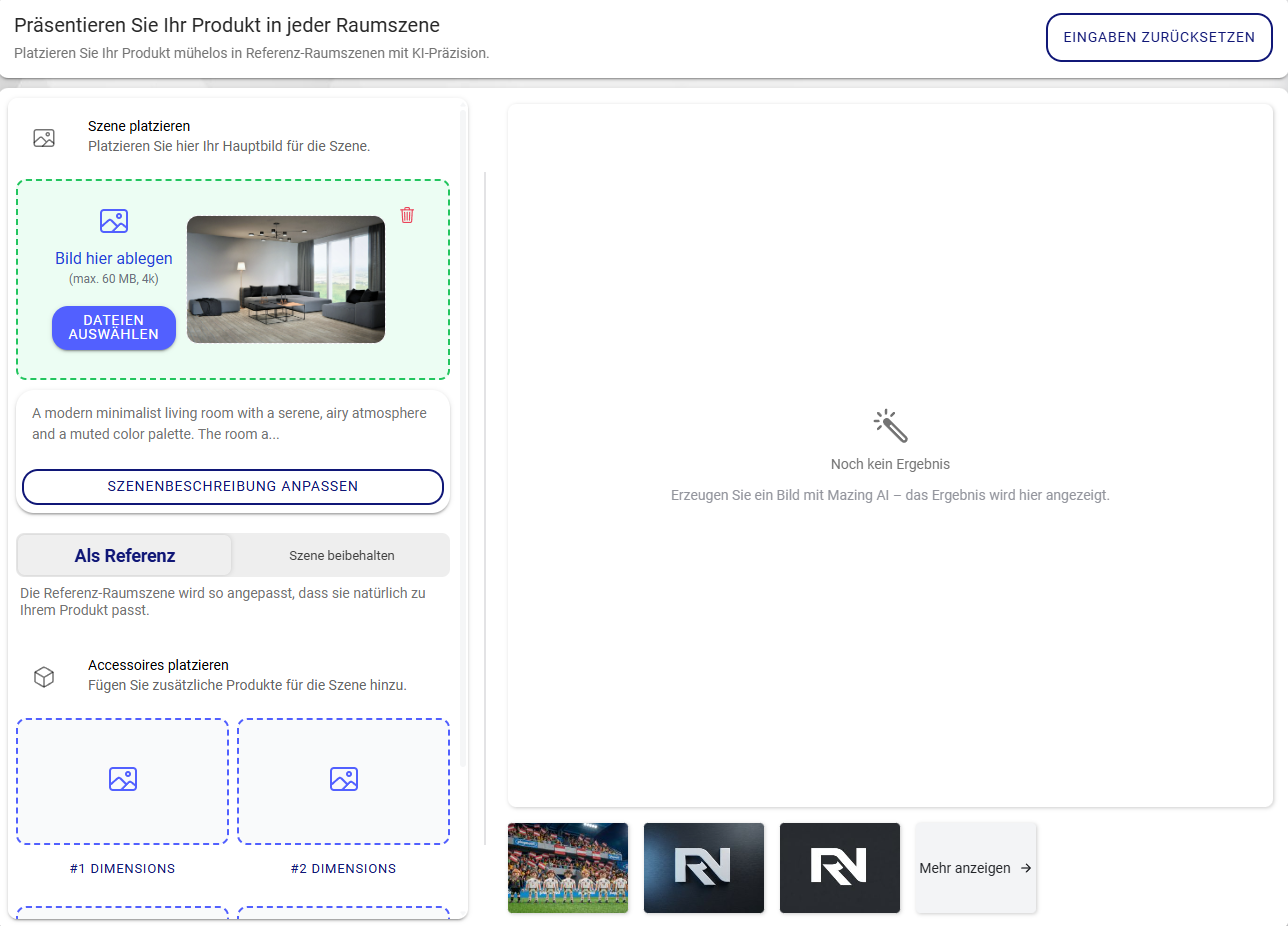
#### Upload a Room Scene
1. Select your **room scene image**.
2. Upload it using the **drag and drop field** or the **Browse File** button.
Once uploaded, the AI will automatically **analyze the room scene**.
* You can keep the **auto-generated scene description**, or
* Adjust the description if you want to refine the result.
#### Scene Reference Options
Choose how the room scene should be used:
* **Use as Reference** – The AI can slightly adjust the scene.
* **Scene Unchanged** – Keeps the room exactly as it is.
#### Place Accessories (Products)
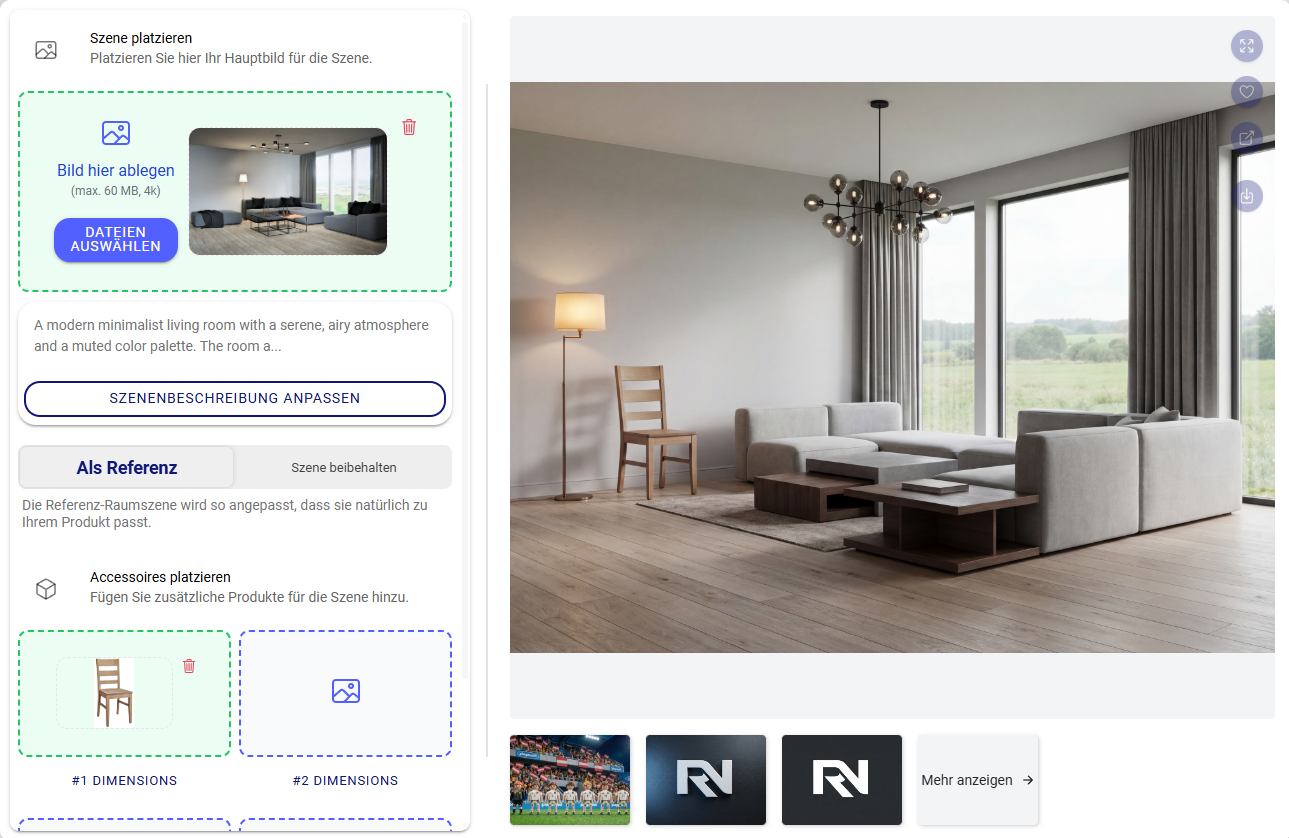
1. Upload **up to 4 objects** you want to place inside the room scene.
2. Each uploaded object will appear below the scene.
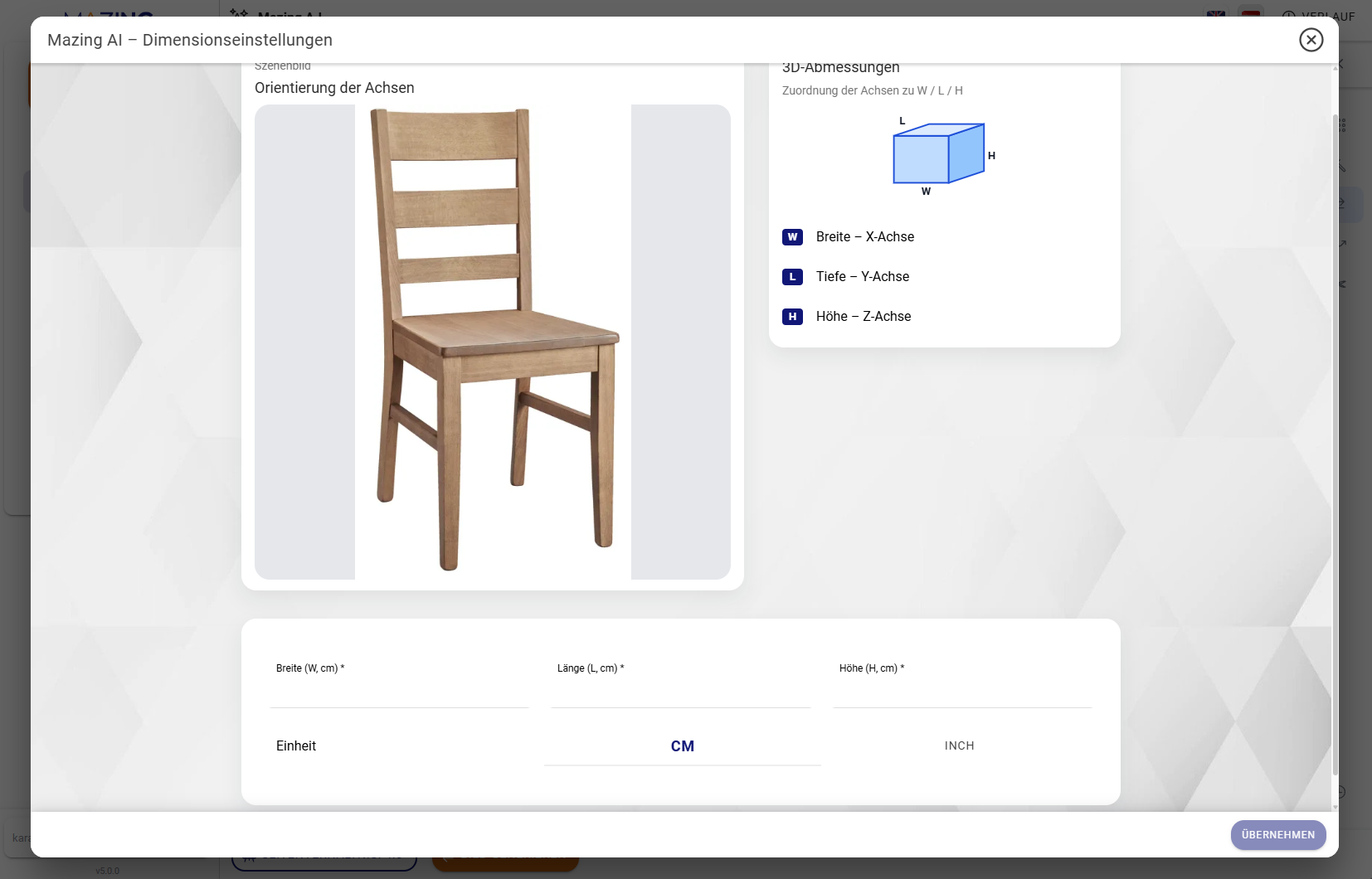
**Adjust Object Dimensions**
* Click the **Dimensions** button below an object.
* Set the **exact size** of the product (e.g. a chair).
* Choose your preferred unit:
* **Centimeters (cm)** or
* **Inches (in)**
* Click **Apply** to confirm your dimension settings.
#### Generate the Image
1. Once all settings are configured, click **Generate Image**.
2. The AI will start creating your scene.
* A **progress bar** will appear to show the generation status.
* The process can take **up to 2 minutes**.